Skip to main content
Contents Calc Dark Mode Prev Next Profile \(\newcommand\DLGray{\color{Gray}}
\newcommand\DLO{\color{BurntOrange}}
\newcommand\DLRa{\color{WildStrawberry}}
\newcommand\DLGa{\color{Green}}
\newcommand\DLGb{\color{PineGreen}}
\newcommand\DLBa{\color{RoyalBlue}}
\newcommand\DLBb{\color{Cerulean}}
\newcommand\ds{\displaystyle}
\newcommand\ddx{\frac{d}{dx}}
\newcommand\os{\overset}
\newcommand\us{\underset}
\newcommand\ob{\overbrace}
\newcommand\obt{\overbracket}
\newcommand\ub{\underbrace}
\newcommand\ubt{\underbracket}
\newcommand\ul{\underline}
\newcommand\tikznode[3][]
{\tikz[remember picture,baseline=(#2.base)]
\node[minimum size=0pt,inner sep=0pt,#1](#2){#3};
}
\newcommand\del{\nabla}
\newcommand\R{\mathbb{R}}
\newcommand\C{\mathcal{C}}
\newcommand\N{\mathcal{N}}
\newcommand\eps{\varepsilon}
\renewcommand\epsilon{\varepsilon}
\renewcommand\subset{\subseteq}
\newcommand\norm[1]{\|{#1}\|}
\newcommand\matrixbrackets[4][1]{
\draw (#3,#2) -- (\fpeval{#3+0.2},#2);
\draw (#3,#1) -- (#3 ,#2);
\draw (#3,#1) -- (\fpeval{#3+0.2},#1);
\draw (#4,#2) -- (\fpeval{#4-0.2},#2);
\draw (#4,#1) -- (#4 ,#2);
\draw (#4,#1) -- (\fpeval{#4-0.2},#1);
}
\tikzstyle{circle node 0}=[fill=white, draw=black, shape=circle, inner sep=0pt]
\tikzstyle{circle node 2}=[fill=white, draw=black, shape=circle, inner sep=2pt]
\tikzstyle{hrect node}=[fill=white, draw=black, inner sep=2pt, outer sep=3pt]
\tikzstyle{vrect node}=[fill=white, draw=black, inner sep=0pt, outer sep=0pt]
\tikzstyle{hidden node 0}=[inner sep=0pt, outer sep=0pt]
\tikzstyle{hidden node 2}=[fill=white, inner sep=2pt, outer sep=2pt]
\tikzstyle{rect node 1}=[fill=white, inner sep=2pt, outer sep=0pt]
\tikzstyle{rect node 2}=[fill=white, draw=black, inner sep=2pt, outer sep=0pt]
\newcommand{\lt}{<}
\newcommand{\gt}{>}
\newcommand{\amp}{&}
\definecolor{fillinmathshade}{gray}{0.9}
\newcommand{\fillinmath}[1]{\mathchoice{\colorbox{fillinmathshade}{$\displaystyle \phantom{\,#1\,}$}}{\colorbox{fillinmathshade}{$\textstyle \phantom{\,#1\,}$}}{\colorbox{fillinmathshade}{$\scriptstyle \phantom{\,#1\,}$}}{\colorbox{fillinmathshade}{$\scriptscriptstyle\phantom{\,#1\,}$}}}
\)
Subsection Modifying the Layout
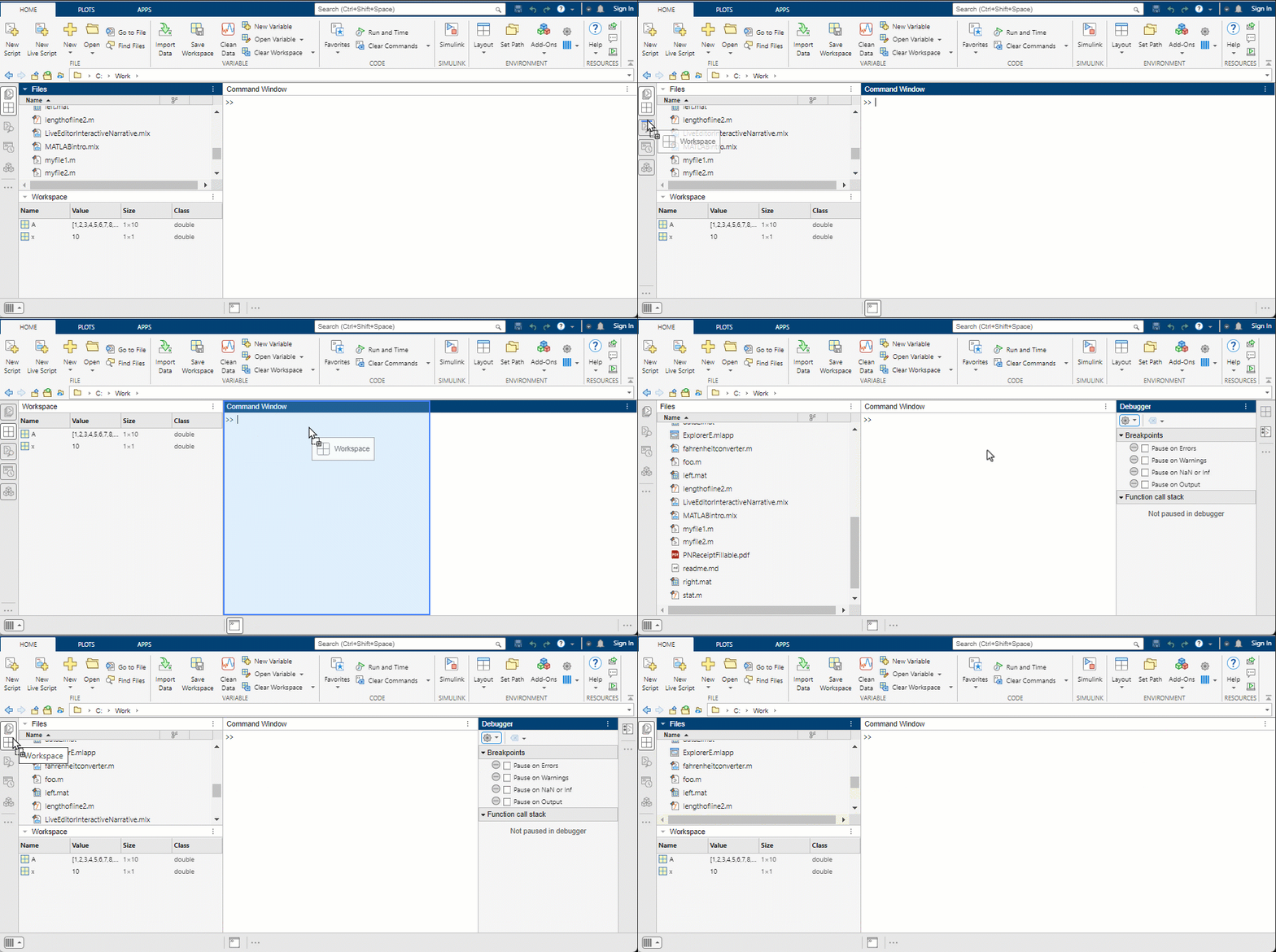
The MATLAB Desktop is customizable. Panels can be shown, hidden, or rearranged to suit your workflow.
Figure 3. Toggling panels on and off in the MATLAB Desktop. The sidebars on the left, right, and bottom of the desktop display the tools docked there. Use them to show or hide panels, drag panel title bars to reposition them, and open additional tools with the “Open more panels” button.
In this chapter, you will work interactively in the Command Window. The next section introduces variables, which help you store and reuse the results of those commands.